Dyslexie: A Computer Font for People with Dyslexia…and Older Eyes, Too

I never thought of myself as having dyslexia, but when I read an article on Dyslexie, a font created for dyslexics, I began to wonder if perhaps I had acquired it in my many years on the planet. For instance, I was once an avid reader, but now I can hardly finish a book – largely due to failing eyesight.
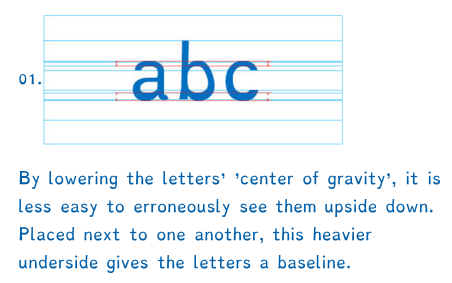
Heavier BaselineThe beauty of Dyslexie is that the letters are much more differentiated than standard fonts and punctuation is more pronounced, making it easier to distinguish each letter and less likely to confuse an 8 with a B, or a capital O with a zero for instance. In my years of reading serial numbers and program installation codes those were two of my nemeses.
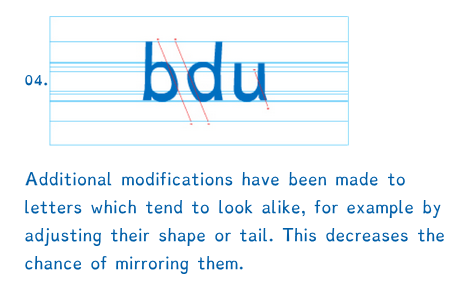
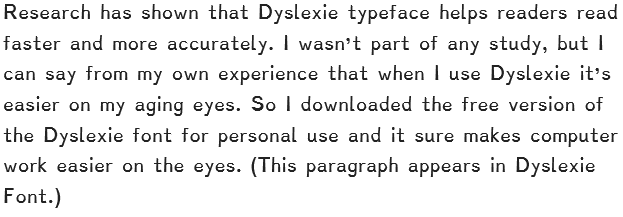
Slant for mirrorIf you have dealt with dyslexia you know that dyslexics tend to see letters in mirror image or upside down. The Dyslexie typeface improves letter recognition by making parts of letters longer, or wider or slanted a little differently so that they are less easily confused. I borrowed the two examples above from DyslexieFont.com to illustrate.Research has shown
 

Healthy Computer Habits

This article focuses on Windows computers, however many of the pointers apply to other operating systems.

  1. Reboot your PC at least once a week.
    The restart process performs self-diagnostic chores and most automatic upgrades. Rebooting will often cure minor glitches.
  2. Leave your PC on all night at least once a week.
    Most PCs have schedules that run in the background for such things as checking for updates and performing automatic backup. These scheduled activities are often performed in the wee small hours of the morning so that they will not cause a slowdown when you are likely working.
  3. Accept updates from original software companies.
    Accept only updates you are sure of. It’s best to check the vendor’s support page if you are unsure of the legitimacy of an update. However, it is good policy to accept most updates unless you have an unusual situation.
  4. Keep abreast of news of the latest scams and phishing schemes.
    There are many services that can help you stay alert. For instance, the US Government Consumer Protection site: https://www.usa.gov/scams-and-fraud.
  5. Use security alerts on the Internet
    Many Internet security programs give you safety indicators, such as stars or bars, when you use a search engine. You can also download programs, such as the customer driven Web of Trust, which give you indicators and feedback about the safety and customer satisfaction of various sites.
  6. Back up your data on a regular schedule.
    Windows has a Backup and Restore application that you can open by typing the word backup in the Start Menu search box. You can also use backup services such as SugarSync or Carbonite. Many of these services will give you a free trial or the first few gigabytes free. Some even do continuous backup so that you would never lose more than what you’d done since your last save. Others, such as Dropbox, One Drive and Google Drive, give you a special folder to save documents you want to keep safe.
  7. Use secure passwords and protect their location.
    A secure password is one that is not easily guessed, so children’s and pets’ names are rarely the basis for a secure password. Password requirements are becoming more and more stringent thus making it harder to create passwords we can remember. So it is good to come up with a system of passwords that you can remember without writing down and tucking under your keyboard. I explain one such system in Creating a Secure Password Set That’s Easy to Remember.
  8. Password protect your profile and keep a guest profile for visitors.
    I often work on a PC because the grandkids have loaded a lot of games and/or picked up a bit of malware while visiting. You can prevent most of these threats by password protecting your profile with a secure password and setting up a guest profile as a Standard User with limited permissions. (See User Accounts in Control Panel.)