Even techies misplace computer files from time to time. I have to admit it happens to me. Luckily I have tools that make finding those elusive files easy — most of the time. Windows 7 and earlier provided a Search box when you press the Start button. In Windows 8 & 8.1 you simply start typing your request from the Start screen. Windows 10 had voice activated search via Cortana and Speech Recognition to listen to your verbal commands. With Windows 11 it’s back to using search boxes. (Make up your mind Microsoft ;^)
When you search for files via Windows File Explorer (Home in Windows 11) advanced options become available in the ribbon menu. For instance you can select a date range, limit the locations to be searched, select the file types, or perhaps most often useful: search for words or phrases within documents. There are so many choices. Just take a look at an active Search Tools ribbon:

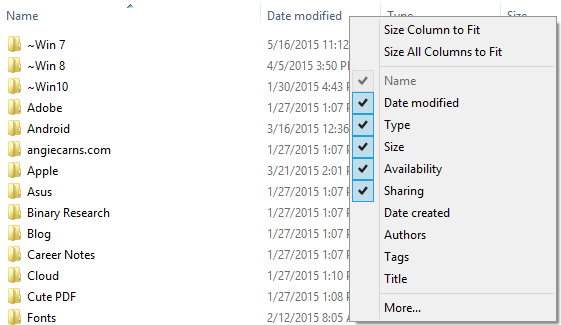
In my last post, Finding Recent Files, I mentioned using Detail View to sort by date. Clicking the headers in Detail View will sort any of the columns. To help your search you can call up more columns by right-clicking on the header row to get a list of available columns.
While you’re searching for those files, don’t forget to check the Downloads folder if you were opening email attachments or pulling files from the Web.
You can do more than you may have realized!
 AngiTech