Day 1 – Tuesday, October 10, 2023
Day 2 – Thursday, October 12, 2023
Day 1 – Tuesday, October 10, 2023
Day 2 – Thursday, October 12, 2023
Have you ever had to make changes to an electronic document only to have words or pictures jumping all over the page for no apparent reason? Drives you nuts, huh? I find that this type of behavior is often due to typing as if creating a document on a typewriter rather than using a word processor. For instance, people will hold down the space bar to get where they want to put the cursor. Sometimes this doesn’t work, so they’ll give up and press the Enter key or the Tab key, often multiple times.
So what has just happened is that the word processing program remembers every one of those keystrokes. As fast as computers are, that can be hundreds of spaces created in just a few seconds. So what looks like a blank page isn’t really blank. Luckily, most word processing programs and some text editors have a way of seeing all those hidden spaces, tabs and paragraph markers. For instance, Microsoft products use the Show/Hide function that is displayed as a paragraph symbol: ¶. Word Perfect uses the Reveal Codes command. Lotus products give you the option to Show > Hidden Characters.
Most people don’t like to create documents with every space being represented with a dot that looks like an elevated period and tabs that look like arrows, but when your document goes crazy on you, be sure to look for those non-printing characters. And remember, You Can Do It!

The newer versions of Microsoft Office feature a super handy and customizable feature called the Quick Access Toolbar in the upper left corner of the screen. Here you can place all the commands you use everyday where they are easy to access without tabbing through the menus.
In the picture at right is an early version of the Quick Access Bar. You can see where I’ve clicked the down arrow on the right end of the bar to expose the currently selected commands and the most common commands that are available. Even more exciting is the More Commands… option near the bottom of the menu. More Commands…. will bring up a dialog box that gives you access to nearly every command in the current program (Word shown). Also available in More Commands… is the ability to rearrange the command buttons in and order that’s logical to you.
This is a fun place to go out and explore.
You Can Do It!

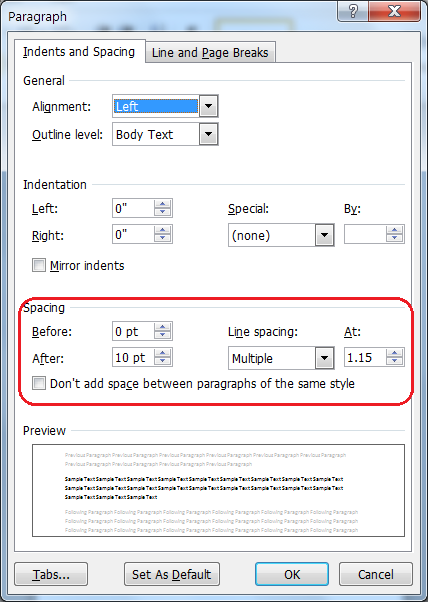 By default the newer versions of Microsoft Word use Multiple Line Spacing 1.08 or 1.15 because it is deemed easier to read online. Since this is not always the most desirable spacing it’s good to know how to change it in the Paragraph dialog box (pictured).
Usually the easiest way to access this is to right click in the paragraph you want to change and choose Paragraph… from the popup menu. I use this feature so much I’ve added it to my Quick Access Bar (see post).
In the Spacing section you can change the spacing before and after the paragraph as well as the spacing between the lines. I have set my default line spacing to Multiple at 1.1 because I do more printed than web work and usually have to tighten my text. The 1.1 spacing is easier to read than the old Single spacing, so I have the best of both worlds.
My suggestion is to play with it now that you’ve discovered it and find the line spacing that works best for you. If you want to change your default so that all your documents start out with your favorite spacing, just click the Set As Default button at the bottom. If you change your mind later on you can always set a new default.
You Can Do It!
 AngiTech