Did you know that right-clicking gives you a pop-up menu with options for what you’re pointing to or have selected? It’s almost like having built-in help tips because these pop-ups are sensitive to the program you’re working in as well as the particular object selected. This is such a handy tool that I right click anytime I’m having trouble with a particular object.
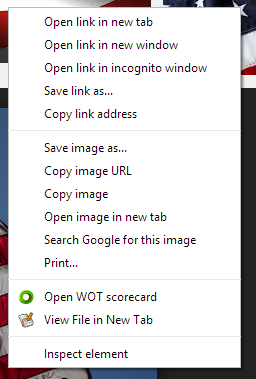 As a for instance try right clicking on the picture of the pop-up menu to your left. Different browsers may give you differently worded options, but those options will have pretty much the same in functions. The pictured menu came from Google Chrome. If your browser is Internet Explorer or Firefox, for instance, your pop-up will be slightly different. Firefox offers a Private window to Chrome’s Incognito window and Internet Explorer offers “Add to favorites…” in place of “Bookmark This Link”.
Applications on your computer may also change the pop-up choices. (Notice the WOT choice. To learn more about the security this app offers check out Getting Clues from “Safe Internet” Applications.)
Right-clicking on images is a great example, however, be aware that text and many other objects offer pop-up helpers. The application or program you are using will also make a big difference. For instance right-clicking on the text in this article will give you a pop-up that’s more concerned with the browser than the text. But if you right-click on text in a word processor you will most likely get a pop-up for formatting or editing the selected text.
Right Clicking on a Mac
To right click on a Mac just hold down the Control key when you click. GCFGlobal has more information on Right-Clicking, including how to change settings and use a trackpad to make pop-ups appear in Section 5 – Common Computer Tasks.
 AngiTech