Watch Out for Password Gotchas

Weak passwords are often a factor in the theft of user data. It is also true that it is becoming harder to create secure passwords. No longer can we simply add a few numbers to the end of our old passwords. Even using symbols to replace letters, like @ for a, or 3 for e, isn’t as effective as it used to be because hackers have figured that out, too. More and more it seems that random character generation is the answer.

Programs that store and protect our passwords usually provide random character generators and have the added value of not taxing our memory. Yet, are they any safer than the single password used to open your list? Biometric password protection is on the horizon, but not yet here for the average computer user. So what are we to do?

For me the answer is still long, complicated passwords that are easy to remember, and a password system that doesn’t required writing them down. (See “Creating a Secure Password That’s Easy to Remember”) Today I’m updating that article with a few new rules for creating passwords.

  1. Create long passwords; as long as a site’s rules will allow if they are limited.
  2. Avoid beginning passwords with a capital letter, because that is the most common way to begin a password. Try starting with a number, small letter or a symbol.
  3. Avoid ending passwords with a string of numbers. It won’t fool the hackers.
  4. To give the appearance of randomness try strings of initials such as the first letter of each word in a sentence, title or quote that you can easily remember.
  5. Find ways to use symbols and numbers creatively.

Here are a few examples for creating passwords using a combination of rules:

“The Lakewood Center for Orthopedics and Sports Medicine gets too much of my money,” becomes tLC4O&SMg2momm.

“A Funny Thing Happened on the Way to the Forum starring Zero Mostel is my favorite comedy,” becomes (with a smiley representing the word Funny) – a:-)THotW2tFsZMimfc.

“My day begins at six with a shower and breakfast so I won’t be late to work,” becomes mdb@6waS&BsIwbl82w

Get creative. You Can Do It!
 

Protect Yourself from Ransomware

In the last two months I’ve learned of three friends who were the victims of various forms of ransomware. The object of ransomware is to block access to your computer’s data and/or operating system until you pay a ransom to the crooks. Two of my friends weren’t sure how they’d gotten hacked, but suspected that it was something they clicked on while surfing the Internet or in an email, which is the most common way of contacting this Trojan Horse type of virus. Even more devastating is that the newer strains of ransomware will encrypt your cloud files (Dropbox, OneDrive, etc.) and even your backup files if they’re accessible.

The third victim received a phone call from someone purporting to be connected with Microsoft who told her that her Windows license was out-of-date and her computer was in bad shape. He offered to fix it if she would go to a web site and click on a link that would allow him remote access to her computer. This scam artist was very convincing and tried to get her credit card information by presenting her with an official looking invoice. When she hesitated he put a password on her computer so that she could not get to her desktop or any of her files. Although this was as much scam as ransomware, the effect was the same. If she had given her credit card information it is doubtful whether her computer would have been restored to her and all too likely that she would have found unauthorized charges on her card. Be aware that no reputable company will cold call you to repair your computer.

Other than disconnecting from the Internet it may seem that we cannot protect ourselves, but take heart. There are steps we can take to avoid or block these attacks and to prepare to recover if we should fall victim to ransomware.

  1. Install and keep up-to-date a good Internet security program. Four programs that are consistently top-rated are Norton, McAfee, Bitdefender and Kaspersky. (Note: Some of the larger Internet hosts, such as Comcast and ATT, are offering free protection downloads to their customers.)
  2. Keep good backups that are not directly connected to your computer. In other words, if you backup to an external hard drive, disconnect it when the backup is complete. It would be a good idea to have at least two drives and switch them out after every backup. Better yet, consider an encrypted backup service such as Malwarebytes, Carbonite or Mozy.
  3. Consider ransomware blocking software such as CryptoPrevent by Foolish IT. (At this writing other blockers are few and designed for professional networks.)
  4. Be suspicious! If a link or an email doesn’t feel right you can double-check the source by hovering your mouse pointer over the link or email address and watching for a pop-up or an indicator in the lower left corner of your screen that will show you the real web or email address of that link. (Example: Hover over this link to look for the address https://www.timeanddate.com/, a great site for keeping track of time changes and what’s going on in the sky.)

Be vigilant and stay safe. You can do it!

Getting Clues from “Safe Internet” Applications

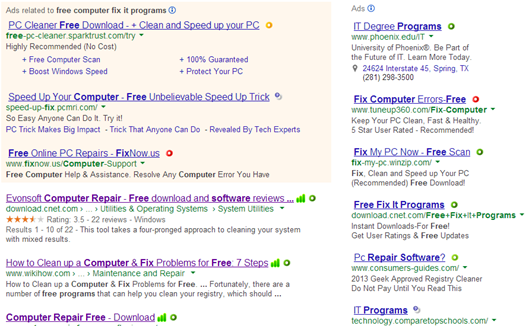
Most modern Internet security suites include indicators to let you know which websites are trustworthy when you are using search engines. It is becoming common to see green, orange or red bars to indicate a site’s rating. You can also download indicator apps such as Web of Trust (WOT) which gives colored markers that show customer reported satisfaction or dissatisfaction to help you decide a site’s trustworthiness. When searching with these apps you’ll see indicators similar to those pictured below:

Safe Internet Indicators

Healthy Computer Habits

This article focuses on Windows computers, however many of the pointers apply to other operating systems.

  1. Reboot your PC at least once a week.
    The restart process performs self-diagnostic chores and most automatic upgrades. Rebooting will often cure minor glitches.
  2. Leave your PC on all night at least once a week.
    Most PCs have schedules that run in the background for such things as checking for updates and performing automatic backup. These scheduled activities are often performed in the wee small hours of the morning so that they will not cause a slowdown when you are likely working.
  3. Accept updates from original software companies.
    Accept only updates you are sure of. It’s best to check the vendor’s support page if you are unsure of the legitimacy of an update. However, it is good policy to accept most updates unless you have an unusual situation.
  4. Keep abreast of news of the latest scams and phishing schemes.
    There are many services that can help you stay alert. For instance, the US Government Consumer Protection site: https://www.usa.gov/scams-and-fraud.
  5. Use security alerts on the Internet
    Many Internet security programs give you safety indicators, such as stars or bars, when you use a search engine. You can also download programs, such as the customer driven Web of Trust, which give you indicators and feedback about the safety and customer satisfaction of various sites.
  6. Back up your data on a regular schedule.
    Windows has a Backup and Restore application that you can open by typing the word backup in the Start Menu search box. You can also use backup services such as SugarSync or Carbonite. Many of these services will give you a free trial or the first few gigabytes free. Some even do continuous backup so that you would never lose more than what you’d done since your last save. Others, such as Dropbox, One Drive and Google Drive, give you a special folder to save documents you want to keep safe.
  7. Use secure passwords and protect their location.
    A secure password is one that is not easily guessed, so children’s and pets’ names are rarely the basis for a secure password. Password requirements are becoming more and more stringent thus making it harder to create passwords we can remember. So it is good to come up with a system of passwords that you can remember without writing down and tucking under your keyboard. I explain one such system in Creating a Secure Password Set That’s Easy to Remember.
  8. Password protect your profile and keep a guest profile for visitors.
    I often work on a PC because the grandkids have loaded a lot of games and/or picked up a bit of malware while visiting. You can prevent most of these threats by password protecting your profile with a secure password and setting up a guest profile as a Standard User with limited permissions. (See User Accounts in Control Panel.)

Be Suspicious [Part 2]

Your computer at home is not the only place where it pays to be suspicious these day. ATM and PosiPay machines are prime places to look over your shoulder, literally. Always look around you before entering your code. That part is just common sense. These days you should also be aware that there might be a tiny camera watching the keypad, so just for safety’s sake shield your input with your body or other hand.

Watch for skimmers, appliances that may be added to a cash machine to pull your data off the magnetic strip. Some are clunky and easily spotted while others are high-tech and look just like the real thing. For more information on what to look for see David Daw’s article, Anatomy of an ATM Skimmer Scam.

Be Suspicious [Part 1]

Internet & email safety require all of us to be a bit suspicious. I know of three instances last year where online address books of personal friends got hacked and emails were sent to all their contact claiming that they were victims of theft while on vacation in a foreign land and begging for help…money, of course. The scary part was that one of those friends was actually on her honeymoon and had purposely not told most people where she was going, so the fake email would seem plausible to some.
My rule of thumb is to look at the language of any email I get. Is it in character for the sender? Does it use hyperbole designed to stir emotions and arrest logical thinking? Does it feel wrong? If any of these questions raise your suspicions about an email or a web site, check it out if possible and above all DON’T CLICK ANY LINKS! Clicking on suspicious links greatly increases the chance that you will get a virus or other malware in your computer. If necessary close your browser or email program to make the page go away. In rare cases it may be necessary to shut down your computer.
If your email provider provides a spam reporting button be sure to report any suspicious email.