Cut, Copy & Paste

One of the best time savers in computing is the oft misunderstood process cutting or copying text, pictures and files and pasting them into a new location. Cutting and copying share a common property in that both operations put the targeted object in memory for immediate use. The difference is that cutting removes the object from its original location while copying leaves it in place.

Cut Copy PasteYou may wonder why the Paste bottle is upside down. I teach my students to use keyboard shortcuts. So it’s easy to remember Ctrl+X for cut, because an X looks rather like scissors; and C for copy (Ctrl+C) because copy starts with C; but where is the V (Ctrl+V) in Paste? You have to turn the glue bottle upside down to paste, right? So look for a V in the tip.

Selecting objects is also commonly done via right-clicking on PCs and control-clicking on a Mac. Be sure to check out “Pop-up Menus the Right-Click Way” if you’re mainly a mouse user.

To cut or copy an object it must first be selected. You don’t have to be a novice to miss that step. My eyes are great at selecting stuff on a computer screen, but I still have to click or drag my mouse to make the computer understand me. For instance, if I’m selecting text I might drag my mouse from the beginning of the first word to the end of the last, or double-left-click a single word, or triple-left-click a paragraph. Or if I want a picture I might drag my mouse pointer from the top left corner to the bottom right, or sometimes simply right-click if I want the whole picture. If on the other hand I want a complete file I would navigate to that file, right-click and choose copy. (Hint: In Windows use the Snipping Tool and on a Mac use the Grab utility to select pictures from your computer screen.)

With an object in memory it can be pasted into a selected location. There’s that darn selection process again. When selecting a spot to paste an object I need to see a blinking cursor if pasting into a text document, because that’s where my paste will take me. Then I can choose how the object reacts with any text already in place. When pasting onto a blank canvas of an image application you usually need only to be sure your app has the focus. In either case you can move your object around by dragging it with your mouse.

You can do it!

Transitioning to Retirement

This Changes everythingMaking the transition from business computing to personal computing after retirement can be a challenge. Many people who use computers all day at work don’t want to look at them when they get home. But what do you do on a rainy day if you don’t like day time TV? Clean house? (No throwing hard objects, please. I bruise easily ;^) Here are some mostly free ideas to help you pass those dull hours when you can’t be active.

You’ve probably already discovered electronic solitaire; you know, the one that won’t let you cheat, but the cards never fall on the floor. You may have checked out Free Cell, Mine Sweeper and Mahjongg, but it doesn’t take long to get tired of playing games alone. If you’re new to computing, however, these games can be a great way to build your mousing skills. You can also learn a lot about personal computing at GCFGlobal.org.

YouTube.com has tons of entertainment options, from viewing cute animal tricks to watching full length movies or the plays of Shakespeare. YouTube also offers lots of helpful household tips from how to hang a picture to repairing a washing machine. There are also countless video tutorials on computers, tablets and smartphones. Just go to YouTube and type your interest into their search bar.YouTube Search

I’m fond of TED (Technology, Entertainment, Design) whose tag line is, “Ideas worth sharing.” TED presents short talks on diverse subjects from comedy, to science, to art, given by experts in their fields. TED also offers a small selection of books, such as The Art of Stillness: Adventures in Going Nowhere by Pico Iyer, a renowned travel writer who promotes sitting still to explore what we really want and to savor events of life.

I’ve fallen asleep to many a documentary. Yet there are many amazing documentaries that will keep you awake at sites like Top Documentary Films and Documentary Heaven.

Perhaps you’ve heard of The Great Courses, a company that makes education available through DVDs and now online course ware. They offer a delightful range of subjects including science, math, history, fine arts, music, philosophy, better living and so much more. Best of all there’s nearly always a sale where you’ll find prices greatly slashed.

Mousing Made Easy

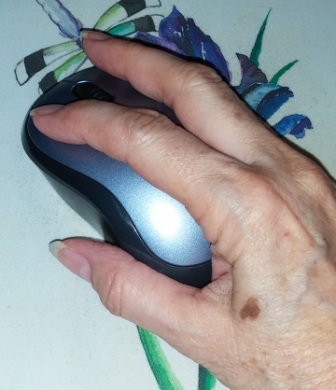
Mousing Tips 2Does my hand look like it’s ready for mousing?  Resting your wrist directly on the desk or mouse pad can aggravate and even cause carpal tunnel syndrome, so using the side of my hand to stabilize my mouse works for me. I’ve been playing with computers since before the mouse was available and I’ve never had carpal tunnel.

There are many other tricks to using a mouse whether it be with a PC or a Mac. Here are just a few:

  • Double clicks are pretty familiar for opening programs and documents and you can also use a double-click to select a single word in a text document.
  • Triple click will select a whole paragraph in a text document.
  • Right-Click – Right-clicking yields a pop-up menu with options for what you’re pointing at. To right-click on a Mac just hold down the Control key when you click.
  • Right-Drag – In Windows dragging with the right mouse button will give you choices like copy or move an object, or create a shortcut. In Word right dragging will give an option menu to create a hyperlink as well as moving or copying.

Scroll Wheel Tricks

  • Ctrl+Scroll – zoom in or out on the Internet and some newer applications
  • Middle Click – pressing down on the scroll wheel, called a middle click, will have various functions according to the program:
    • It could drag your screen around to expose hidden areas if you’ve zoomed in too far,
    • Or it may put you in hyper-speed as you move the mouse up and down.
    • Middle clicking on a link in a browser will force it to open in a new tab so you don’t lose the starting page.

Pop-up Menus the Right-Click Way

Did you know that right-clicking gives you a pop-up menu with options for what you’re pointing to or have selected? It’s almost like having built-in help tips because these pop-ups are sensitive to the program you’re working in as well as the particular object selected. This is such a handy tool that I right click anytime I’m having trouble with a particular object.

Pop-up MenuAs a for instance try right clicking on the picture of the pop-up menu to your left. Different browsers may give you differently worded options, but those options will have pretty much the same in functions. The pictured menu came from Google Chrome. If your browser is Internet Explorer or Firefox, for instance, your pop-up will be slightly different. Firefox offers a Private window to Chrome’s Incognito window and Internet Explorer offers “Add to favorites…” in place of “Bookmark This Link”.

Applications on your computer may also change the pop-up choices. (Notice the WOT choice. To learn more about the security this app offers check out Getting Clues from “Safe Internet” Applications.)

Right-clicking on images is a great example, however, be aware that text and many other objects offer pop-up helpers. The application or program you are using will also make a big difference. For instance right-clicking on the text in this article will give you a pop-up that’s more concerned with the browser than the text. But if you right-click on text in a word processor you will most likely get a pop-up for formatting or editing the selected text.

Right Clicking on a Mac

To right click on a Mac just hold down the Control key when you click. GCFGlobal has more information on Right-Clicking, including how to change settings and use a trackpad to make pop-ups appear in Section 5 – Common Computer Tasks.