Healthy Computer Habits

This article focuses on Windows computers, however many of the pointers apply to other operating systems.

  1. Reboot your PC at least once a week.
    The restart process performs self-diagnostic chores and most automatic upgrades. Rebooting will often cure minor glitches.
  2. Leave your PC on all night at least once a week.
    Most PCs have schedules that run in the background for such things as checking for updates and performing automatic backup. These scheduled activities are often performed in the wee small hours of the morning so that they will not cause a slowdown when you are likely working.
  3. Accept updates from original software companies.
    Accept only updates you are sure of. It’s best to check the vendor’s support page if you are unsure of the legitimacy of an update. However, it is good policy to accept most updates unless you have an unusual situation.
  4. Keep abreast of news of the latest scams and phishing schemes.
    There are many services that can help you stay alert. For instance, the US Government Consumer Protection site: https://www.usa.gov/scams-and-fraud.
  5. Use security alerts on the Internet
    Many Internet security programs give you safety indicators, such as stars or bars, when you use a search engine. You can also download programs, such as the customer driven Web of Trust, which give you indicators and feedback about the safety and customer satisfaction of various sites.
  6. Back up your data on a regular schedule.
    Windows has a Backup and Restore application that you can open by typing the word backup in the Start Menu search box. You can also use backup services such as SugarSync or Carbonite. Many of these services will give you a free trial or the first few gigabytes free. Some even do continuous backup so that you would never lose more than what you’d done since your last save. Others, such as Dropbox, One Drive and Google Drive, give you a special folder to save documents you want to keep safe.
  7. Use secure passwords and protect their location.
    A secure password is one that is not easily guessed, so children’s and pets’ names are rarely the basis for a secure password. Password requirements are becoming more and more stringent thus making it harder to create passwords we can remember. So it is good to come up with a system of passwords that you can remember without writing down and tucking under your keyboard. I explain one such system in Creating a Secure Password Set That’s Easy to Remember.
  8. Password protect your profile and keep a guest profile for visitors.
    I often work on a PC because the grandkids have loaded a lot of games and/or picked up a bit of malware while visiting. You can prevent most of these threats by password protecting your profile with a secure password and setting up a guest profile as a Standard User with limited permissions. (See User Accounts in Control Panel.)

Those Pesky Characters You Can’t See

Have you ever had to make changes to an electronic document only to have words or pictures jumping all over the page for no apparent reason? Drives you nuts, huh? I find that this type of behavior is often due to typing as if creating a document on a typewriter rather than using a word processor. For instance, people will hold down the space bar to get where they want to put the cursor. Sometimes this doesn’t work, so they’ll give up and press the Enter key or the Tab key, often multiple times.

So what has just happened is that the word processing program remembers every one of those keystrokes. As fast as computers are, that can be hundreds of spaces created in just a few seconds. So what looks like a blank page isn’t really blank. Luckily, most word processing programs and some text editors have a way of seeing all those hidden spaces, tabs and paragraph markers. For instance, Microsoft products use the Show/Hide function that is displayed as a paragraph symbol: ¶. Word Perfect uses the Reveal Codes command. Lotus products give you the option to Show > Hidden Characters.

Most people don’t like to create documents with every space being represented with a dot that looks like an elevated period and tabs that look like arrows, but when your document goes crazy on you, be sure to look for those non-printing characters. And remember, You Can Do It!

Be Suspicious [Part 2]

Your computer at home is not the only place where it pays to be suspicious these day. ATM and PosiPay machines are prime places to look over your shoulder, literally. Always look around you before entering your code. That part is just common sense. These days you should also be aware that there might be a tiny camera watching the keypad, so just for safety’s sake shield your input with your body or other hand.

Watch for skimmers, appliances that may be added to a cash machine to pull your data off the magnetic strip. Some are clunky and easily spotted while others are high-tech and look just like the real thing. For more information on what to look for see David Daw’s article, Anatomy of an ATM Skimmer Scam.

Tutorials for Beginners and Refreshers

Computer Tutorials

http://www.gcflearnfree.org/topics – My all-time favorite for free tutorials

http://tech.tln.lib.mi.us/tutor/  – Great for the absolute beginner

http://www.skillfulsenior.com/skills/index.php  –  Beginning guide for seniors

Mouse Tutorials

http://www.pbclibrary.org/mousing/mousercise.htm

http://www.youtube.com/watch?v=uUZ5fvsZMi4&noredirect=1

Keyboard Tutorials

http://www.powertyping.com/qwerty.html

http://www.powertyping.com/qwerty/lessonsq.html

Internet Tutorial:

http://www.gcflearnfree.org/internet101

http://www.internet101.org/    – Lots of ads, but lots of information, too

http://netforbeginners.about.com/od/internet101/tp/Internet-Beginners-Quick-Reference-Guide.htm

Quick Access Toolbar in Microsoft Office

Quick Access Word 2012

The newer versions of Microsoft Office feature a super handy and customizable feature called the Quick Access Toolbar in the upper left corner of the screen. Here you can place all the commands you use everyday where they are easy to access without tabbing through the menus.

In the picture at right is an early version of the Quick Access Bar. You can see where I’ve clicked the down arrow on the right end of the bar to expose the currently selected commands and the most common commands that are available. Even more exciting is the More Commands… option near the bottom of the menu. More Commands…. will bring up a dialog box that gives you access to nearly every command in the current program (Word shown). Also available in More Commands… is the ability to rearrange the command buttons in and order that’s logical to you.

This is a fun place to go out and explore.

You Can Do It!

Pictured below you can see the newer Word 365 layout for customizing the Quick Access Toolbar.

Changing Line Spacing in Microsoft Word

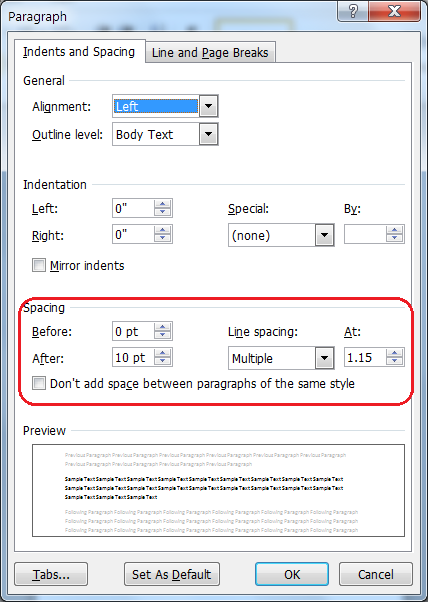
By default the newer versions of Microsoft Word use Multiple Line Spacing 1.08 or 1.15 because it is deemed easier to read online. Since this is not always the most desirable spacing it’s good to know how to change it in the Paragraph dialog box (pictured). 
Usually the easiest way to access this is to right click in the paragraph you want to change and choose Paragraph… from the popup menu. I use this feature so much I’ve added it to my Quick Access Bar (see post).

In the Spacing section you can change the spacing before and after the paragraph as well as the spacing between the lines. I have set my default line spacing to Multiple at 1.1 because I do more printed than web work and usually have to tighten my text. The 1.1 spacing is easier to read than the old Single spacing, so I have the best of both worlds.

My suggestion is to play with it now that you’ve discovered it and find the line spacing that works best for you. If you want to change your default so that all your documents start out with your favorite spacing, just click the Set As Default button at the bottom. If you change your mind later on you can always set a new default.

You Can Do It!

Creating a Secure Password That’s Easy to Remember

I used to keep a three-page list of passwords because I had so many. Not very secure. Now I keep a much shorter list, on which no passwords are written. It’s based only on what sites require/allow what elements.

The elements I need to keep track of are letters, numbers, special characters and whether or not password changes are required. Password Type A (most common) allows letters & numbers only. Type B (growing more common) allows special characters. Sites that require periodical password changes are Type C, which can be combined with other types (e.g. Type AC). If I run across an exception I simply write a rule and give it a type.

Next I created a pass phrase since multiple words are harder to crack than a single word. For best results I start with an unusual combination, such as “Chocolate Ankle.” (You might prefer made up words, which is okay as long it’s easy for YOU to remember.) I’ll use Chocolate Ankle for my example.

Now that I have a base I squish it together so that it’s long enough for security, but not cumbersome to type: ChocoAnkle. Next I substitute a couple of numbers that look like letters and get: Ch0coAnk1e, which becomes my base for Type A. For Type B I change a letter to a special character: Ch0co@nk1e.

The key step is to create a code that makes every password specific to its website so that if one password gets cracked the rest aren’t compromised. For instance you might decide to use the first two letters of the site name in reverse, thus the password for mybank.com might become Ch0coYm@nk1e.

The trickiest type is Type C. How do I remember what change I made last without writing down the whole password? My solution was to choose a specific location within my password, such as the third character, and change only that character. Then for that site I do write down the site name and only the new character. So my entry for mybank.com might be: “Bank-BC!” and the current password would be:Ch!coYm@nk1e, which looks very hard to remember, but it’s not because it follows my personal rules.

Now I can keep a single-page cheat sheet, because all I list is the website and its type. Best of all no more written down passwords…well, one exception on the last page of my will. Only my executor knows about the types and their rules. I send him my cheat sheet periodically.

Be Suspicious [Part 1]

Internet & email safety require all of us to be a bit suspicious. I know of three instances last year where online address books of personal friends got hacked and emails were sent to all their contact claiming that they were victims of theft while on vacation in a foreign land and begging for help…money, of course. The scary part was that one of those friends was actually on her honeymoon and had purposely not told most people where she was going, so the fake email would seem plausible to some.
My rule of thumb is to look at the language of any email I get. Is it in character for the sender? Does it use hyperbole designed to stir emotions and arrest logical thinking? Does it feel wrong? If any of these questions raise your suspicions about an email or a web site, check it out if possible and above all DON’T CLICK ANY LINKS! Clicking on suspicious links greatly increases the chance that you will get a virus or other malware in your computer. If necessary close your browser or email program to make the page go away. In rare cases it may be necessary to shut down your computer.
If your email provider provides a spam reporting button be sure to report any suspicious email.