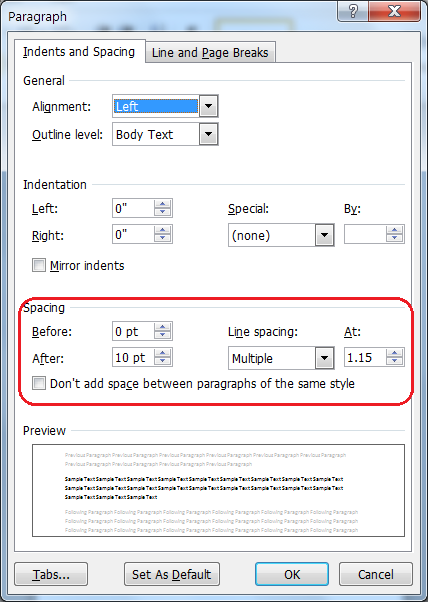
 By default the newer versions of Microsoft Word use Multiple Line Spacing 1.08 or 1.15 because it is deemed easier to read online. Since this is not always the most desirable spacing it’s good to know how to change it in the Paragraph dialog box (pictured).
Usually the easiest way to access this is to right click in the paragraph you want to change and choose Paragraph… from the popup menu. I use this feature so much I’ve added it to my Quick Access Bar (see post).
In the Spacing section you can change the spacing before and after the paragraph as well as the spacing between the lines. I have set my default line spacing to Multiple at 1.1 because I do more printed than web work and usually have to tighten my text. The 1.1 spacing is easier to read than the old Single spacing, so I have the best of both worlds.
My suggestion is to play with it now that you’ve discovered it and find the line spacing that works best for you. If you want to change your default so that all your documents start out with your favorite spacing, just click the Set As Default button at the bottom. If you change your mind later on you can always set a new default.
You Can Do It!
 AngiTech